This guide covers manual firmware recovery for the Vision Miner 22IDEX using Bossa software. The mainboard and flashing procedure are identical for V3 and V4 — only the firmware files differ. Use this procedure if the printer is unresponsive after a firmware update, shows no indicator lights, or the support team has instructed you to reflash the mainboard firmware.
¶ Safety and Warnings
WARNING: Turn off the printer and unplug it from the power outlet. Make sure the printer is completely powered off before starting any work.
WARNING: Wait at least 60 seconds after powering off for the capacitors to discharge.
Attention: Do not connect or disconnect the USB cable while the printer is powered on — this can damage the mainboard.
¶ Tools and Materials
- USB-C cable (included with the printer)
- Computer (Windows or Mac)
- Needle-nose pliers (for jumper handling)
¶ 1. Download Firmware and Software
Note: The firmware files listed below are board-level firmware only — they are not full printer firmware packages. These files restore basic operation of the mainboard so it can boot and communicate. After flashing, you will still need to load the complete printer firmware (config, macros, etc.) via the SD card or Web Interface.
Bossa software:
- Download and install Bossa from the official Duet3D repository:
Board firmware — choose your printer version:
If you have a V1 or V2 printer:
- Download the board firmware for the Duet 2 mainboard:
If you have a V3 or V4 printer:
- Download both board firmware files — one for the mainboard and one for the expansion board:
- Duet3Firmware_MB6HC.bin — mainboard firmware
- Duet3Firmware_EXP3HC.bin — expansion board firmware
¶ 2. Power Down the Printer
- Turn off the printer and unplug the power cord. No power should reach the machine during the entire procedure.
¶ 3. Erase the Mainboard Firmware
- Locate the erase jumper on the mainboard.
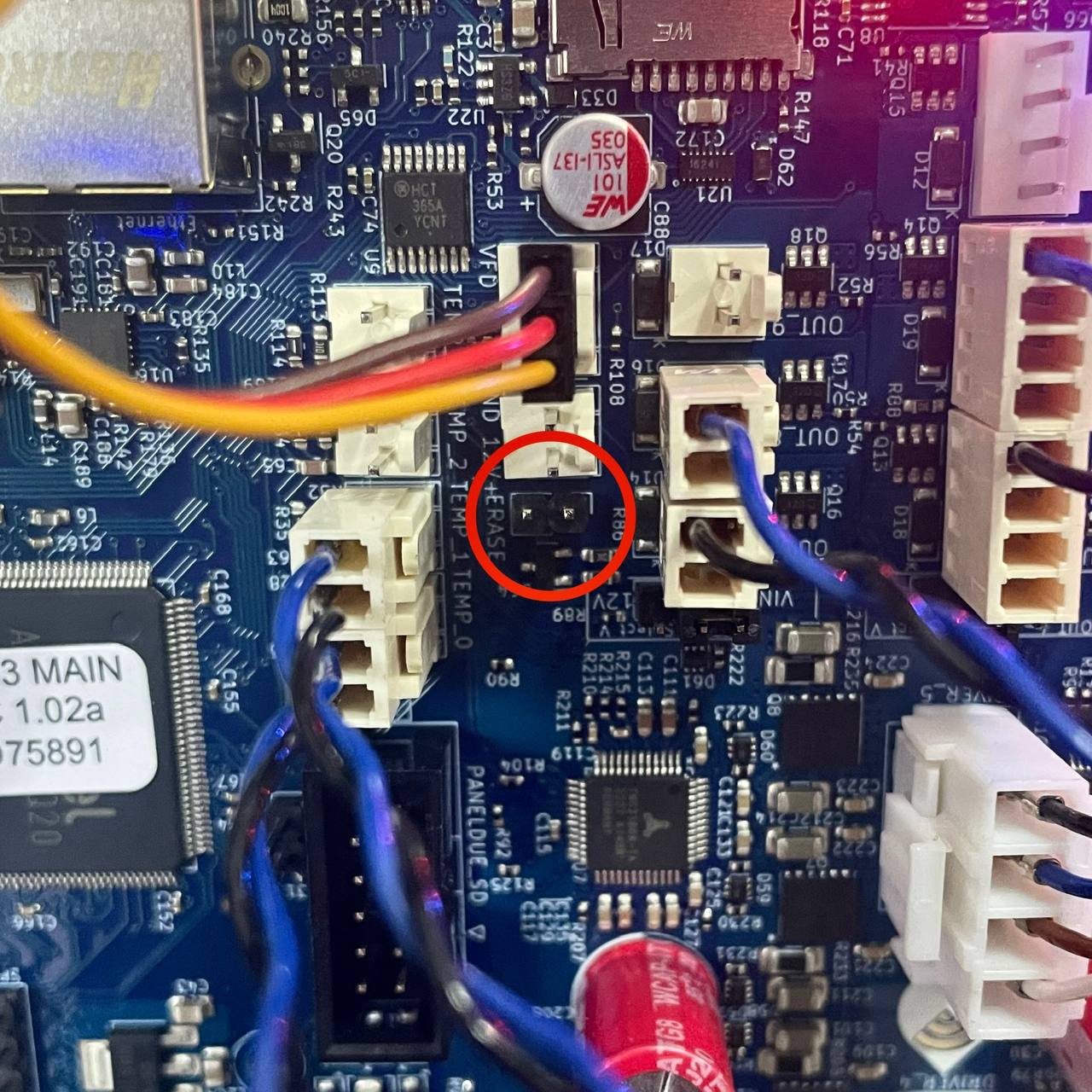
- Place a jumper cap on the erase pins to short them. This wipes the current firmware from the board.
Note: If you don't have a spare jumper cap, you can temporarily borrow one of the jumpers visible on the board in the photo above. These jumpers are not active during the firmware flashing procedure. Use needle-nose pliers to carefully remove one and place it on the erase pins. After the erase is complete, return the jumper to its original position.
¶ 4. Connect and Reset
-
Connect the printer to your computer using the USB-C cable.
-
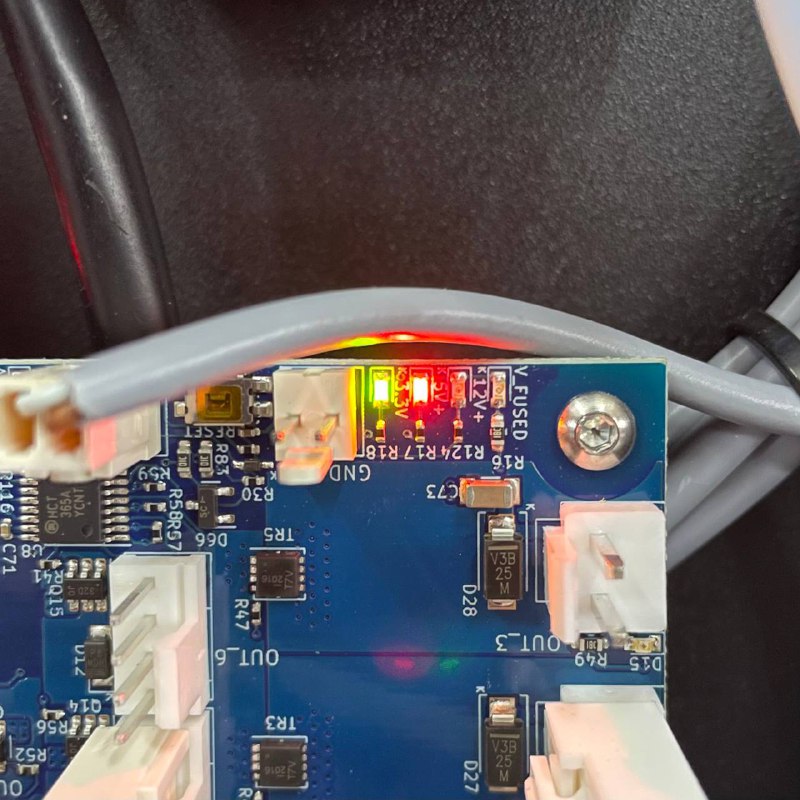
Verify that the 5V (Red) and 3.3V (Green) LEDs on the mainboard are lit.
-
Remove the erase jumper. If you borrowed a jumper from the board, return it to its original position using needle-nose pliers.
-
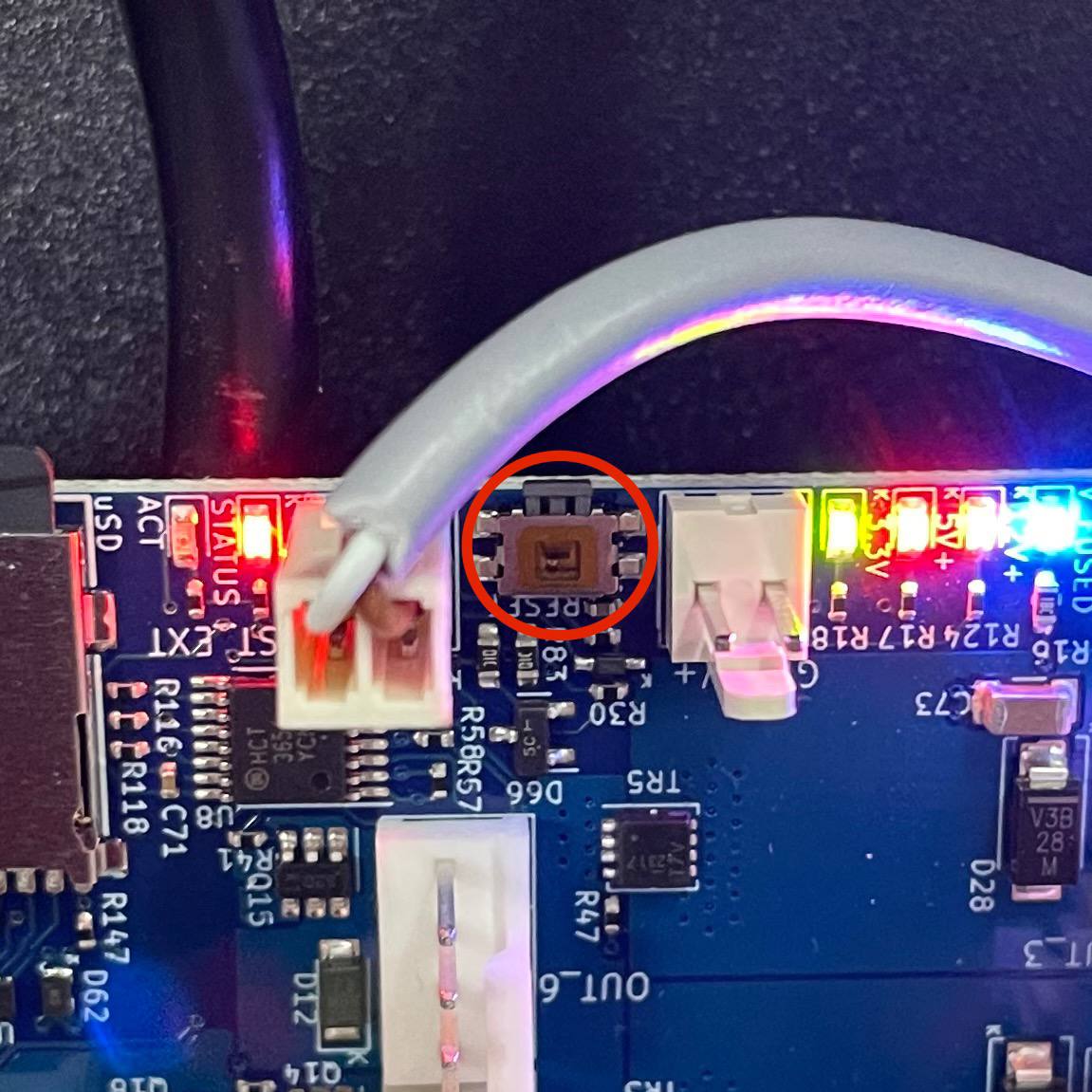
Press the Reset button on the mainboard.
¶ 5. Flash the Firmware
-
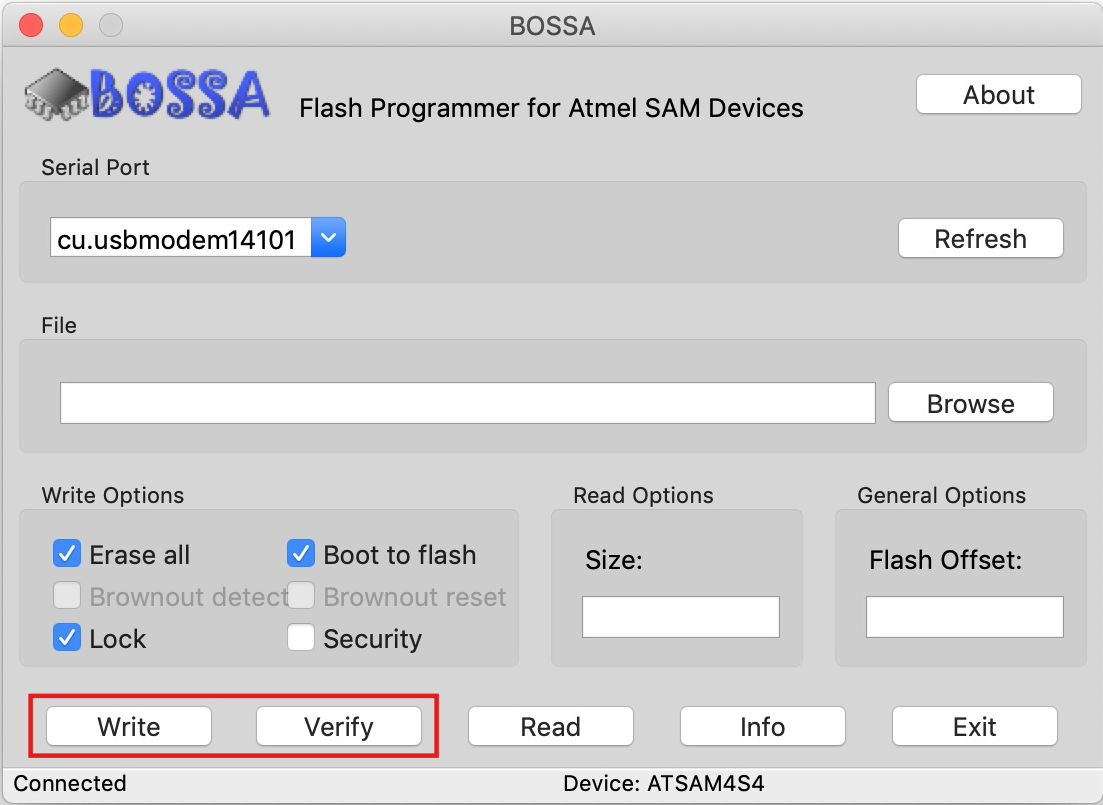
Launch Bossa. It should automatically detect the correct COM port. If the port is not detected, open Device Manager (Windows) or System Information (Mac) to find it manually.
-
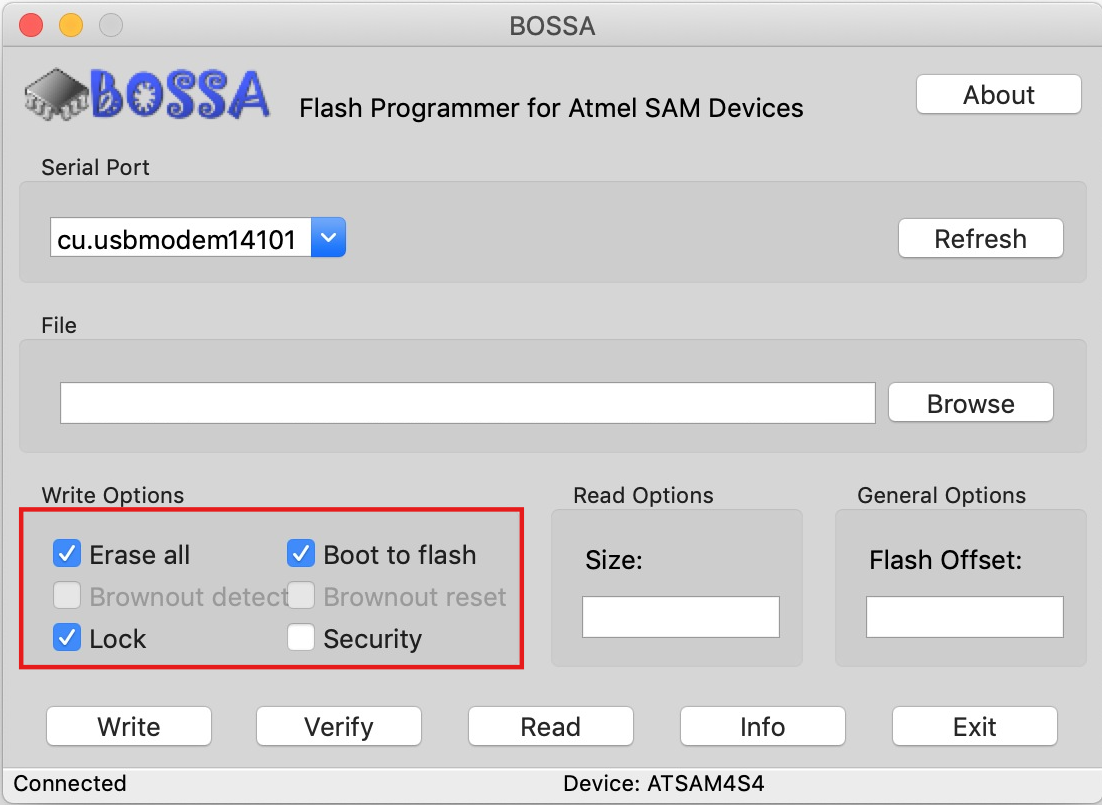
Check the following boxes: Erase all, Lock, and Boot to flash.
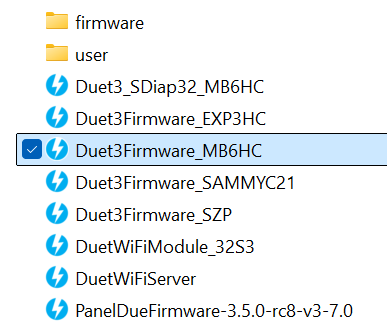
- Click Browse and navigate to the firmware binary:
22IDEX Firmware→firmware→Duet3Firmware_MB6HC.bin.
-
Click Write to upload the firmware to the mainboard.
-
Once the write completes, click Verify to confirm the firmware was written correctly.
¶ 6. Reconnect and Power On
-
Disconnect the USB-C cable from the mainboard.
-
Reconnect the power cord and turn on the printer.
-
Verify that the printer boots normally and the Web Interface is accessible.
¶ Support
Vision Miner Support
- Email: support@visionminer.com
- Phone: +1 (949) 522-4422