¶ Introduction
This guide covers updating the firmware on your Vision Miner 22 IDEX V4 printer. Firmware updates deliver performance improvements, new features, bug fixes, and enhanced reliability based on user feedback and ongoing development.
Regular firmware updates ensure your machine operates with the latest capabilities and improvements. Updates may include motion control refinements, temperature management enhancements, new calibration features, and compatibility with updated slicing software. Keeping your firmware current maximizes print quality and machine reliability.
Updates are delivered as a single ZIP archive containing all necessary files and are installed through the web interface, which automatically handles file placement and system restart. The process typically takes 2-3 minutes.
Note: V4 firmware is specifically designed for V4 hardware. V3 models require different firmware versions.
¶ Prerequisites
¶ Required Access
- Network connection to the printer (WiFi, Ethernet, or Access Point mode)
- Web browser to access the web interface
- Downloaded firmware ZIP file from the official release page
¶ Before You Begin
- Note your current firmware version (visible on the web interface dashboard)
- Ensure the printer is idle (not printing)
- Verify stable network connection to the printer
- Optional: Back up your SD card if you want to keep your GCode files and custom firmware modifications
¶ Safety & Pre-checks
Warning: Installing incorrect firmware versions can cause printer malfunctions. V4 firmware is only compatible with V4 hardware.
Important: Do not power off the printer during the firmware update process. Allow the update to complete and the system to restart automatically.
Note: Firmware updates will erase GCode files and custom firmware modifications. If you want to keep your print jobs or custom code changes, back up your SD card content or download files via the web interface before updating.
¶ Automatic Firmware Update
¶ Video Guide
¶ 1. Download Firmware
- Review the Change Log to see what improvements and fixes are included in the latest version.
- Download the V4 Firmware ZIP file to your computer.
- Note the version number for your records.
Note: Do not extract or modify the ZIP file. The web interface requires the complete ZIP archive.
¶ 2. Upload Firmware
- Connect to your printer's web interface using your web browser.
- Navigate to Machine-Specific tab.
- Click Install Update.
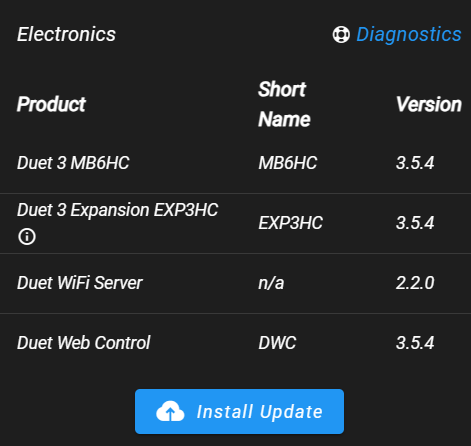
- Select the downloaded ZIP archive file.
- Wait for file transfer to complete. This typically takes 30-60 seconds depending on your network connection.
What Happens Next:
- The web interface uploads all firmware files to the printer
- A progress indicator shows the transfer status
- When complete, an update notification appears
¶ 3. Confirm and Install
- When the update notification appears, click Yes or Confirm to proceed with installation.
- The printer will:
- Install the firmware files automatically
- Restart the control board
- Reinitialize all systems
Expected Behavior:
- The web interface connection will be lost briefly during restart
- The printer may be unresponsive for 30-60 seconds
- All motors will idle during the restart
¶ 4. Verify Update
- Wait for the printer to complete its restart sequence (approximately 30-60 seconds).
- Refresh your web browser page to reconnect to the updated web interface.
- Check the firmware version displayed on the dashboard to confirm the update was successful.
- The printer is now ready for use with the updated firmware.
Success: If the dashboard shows the new firmware version, the update was successful and the printer is ready to use.
¶ Troubleshooting
¶ Cannot Access Web Interface After Update
Symptoms:
- Web interface does not load after update
- Browser shows connection error
- Cannot reach printer IP address
Solutions:
- Wait 2 minutes: The printer may still be restarting. Allow additional time for initialization.
- Hard refresh the browser: Press
Ctrl+F5(Windows) orCmd+Shift+R(Mac) to clear cached web interface files. - Check network connection: Verify your computer is still connected to the same network as the printer.
- Access via alternate method: If you normally use the hostname
22idex.local, try using the IP address directly, or vice versa. - Restart printer: Power cycle the printer and wait 2 minutes for full startup.
¶ Update File Upload Fails
Symptoms:
- Upload progress bar stalls
- Error message during file transfer
- Upload never completes
Solutions:
- Check network stability: Ensure stable connection between your computer and printer. Avoid WiFi if possible; use Ethernet for updates.
- Verify file integrity: Re-download the firmware ZIP file. Do not extract or modify it.
- Close other programs: Close unnecessary programs that may be using network bandwidth.
- Try different browser: If using one browser, try another (Chrome, Firefox, Edge).
¶ Wrong Firmware Version Installed
Symptoms:
- Printer behaves incorrectly after update
- Features missing or malfunctioning
- Dashboard shows unexpected version number
Warning: If you accidentally installed V3 firmware on a V4 machine, immediately power off the printer and contact support.
Solutions:
- Verify your hardware version: Check the printer's serial number or documentation to confirm you have a V4 model.
- Download correct firmware: Ensure you downloaded the V4 firmware, not V3.
- Re-install correct version: Follow the update procedure again with the correct firmware file.
¶ Conclusion
You have successfully updated your Vision Miner 22 IDEX V4 firmware. The printer now operates with the latest features, improvements, and bug fixes.
What You Have Accomplished:
- ✅ Downloaded the latest V4 firmware
- ✅ Uploaded firmware through the web interface
- ✅ Completed automatic installation and system restart
- ✅ Verified the firmware update was successful
Key Takeaways:
- Regular firmware updates improve performance and add new features
- The automatic update process handles all file placement and system restart
- Firmware updates erase existing GCode files and custom modifications - back up if you want to keep them
- The entire update process typically takes 2-3 minutes
Next Steps:
- Review the Change Log to familiarize yourself with new features and changes
- If you have calibration data or custom configurations, verify they are still functioning as expected
- Resume normal printing operations